
This article explains two methods to recreate the invoice accurately.
Method 1 – Reassociate the Payment Using the Reference Number
This method only works reliably on the computer linked to the terminal that processed the payment, on the day of the transaction or the day after. After that, Alice POS may no longer recognize the reference number.
-
Locate the terminal receipt printed at the time of the transaction, or note the 6-digit reference number shown on the cash drawer closing.
- Find the 6-digit reference/authorization number (digits only, no letters).
- Recreate the invoice in Alice POS with the same items and the same total.
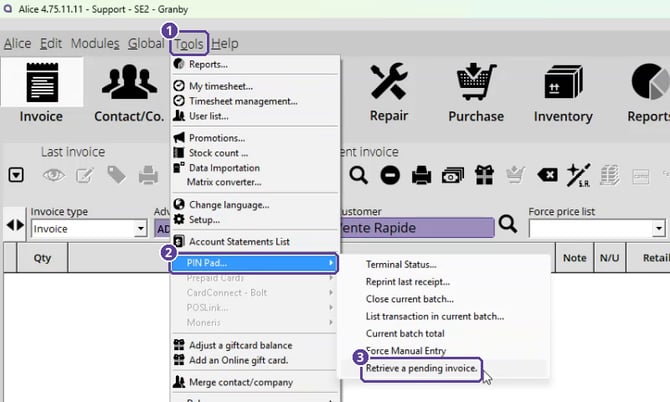
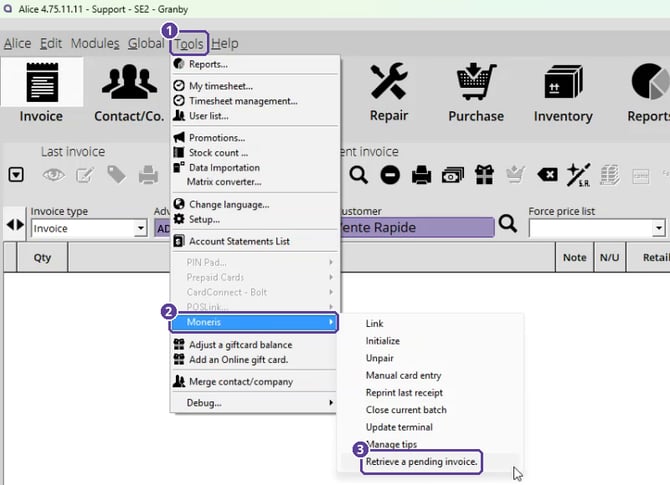
- In Alice POS, open the Tools menu.
- Select your terminal's submenu:
- PIN Pad: Global Payments and other terminals;
- Moneris: Moneris terminals.
- Click Retrieve a pending invoice.
- Tools > PIN Pad > Retrieve a pending invoice
- Tools > Moneris > Retrieve a pending invoice
- Tools > PIN Pad > Retrieve a pending invoice
- Enter the 6-digit reference number and click OK.
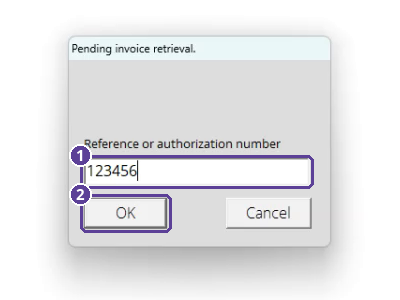
- If no error message appears (e.g., "There are not any saved invoice linked to this transactions."), the payment has been successfully reassociated.
8. Finalize the invoice — the payment will now appear as completed.
If the message "There are not any saved invoice linked to this transactions. Only current day pending invoice can be retrieved." appears, click OK and go to Method 2.
Method 2 – Recreate the Invoice with a Temporary Payment Method
- Recreate the invoice with the correct items and total.
- At payment, select a payment method not linked to the payment terminal (e.g., Cheque, Bank Transfer, Gift Certificate).
- Add an internal note on the invoice specifying:
- The actual payment was by card (e.g., Visa) on [original date]
- The terminal confirmed approval
- Reason: program freeze, payment method used temporarily to preserve the record
- Finalize the invoice.
- After closing the till for the day, go back into the invoice and change the payment method to the correct one (e.g., Visa), following the steps in Changing an Invoice's Payment Method Without Canceling it.
If more than 1–2 days have passed since the transaction, Method 1 is unlikely to work — go directly to Method 2 and leave a clear note with the original transaction date for your records and for the customer's statement reconciliation.