Only original devices sold by a reputable distributor can be configured using the Zebra 123Scan Utility software. Scanners purchased from Amazon, eBay, or other public marketplaces are generally not detected by the application.
Driver installation
-
Make sure the scanner is connected to the computer via a USB port.
-
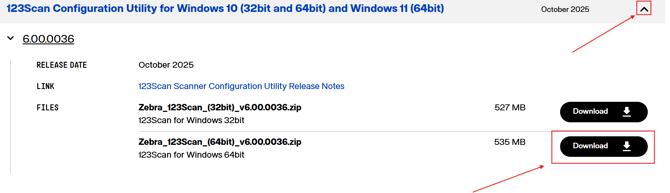
Download this file for the installation of the Zebra 123Scan utility (based on your Windows system version; either 32-bit or 64-bit):
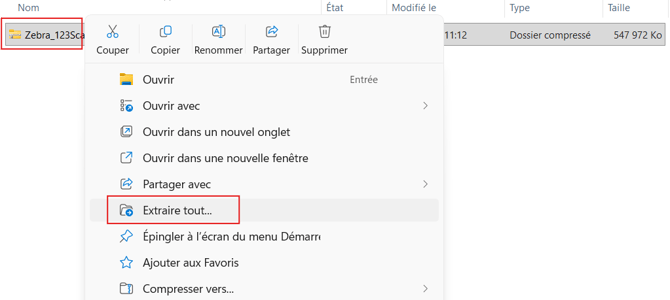
Go to the installation file you downloaded and, using a right-click, select "Extract All".
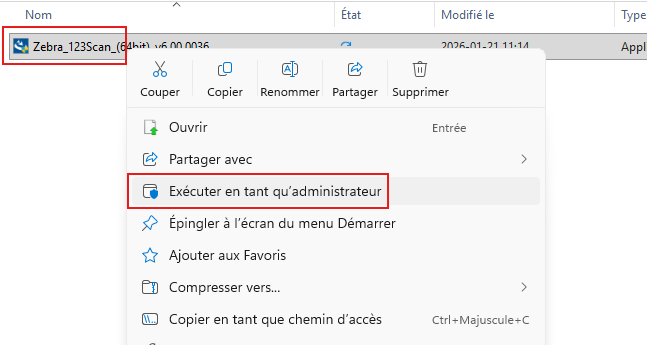
Go to the extracted installation file and, using a right-click, select "Run as administrator".
-
Follow the installation steps.
-
Uncheck the two options below and click "Finish".
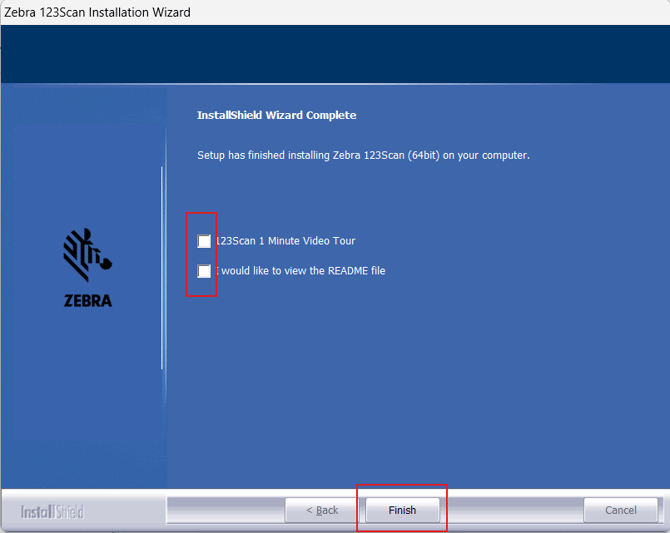
Once finished, restart your computer.
Next, open Device Manager and find the section "Universal Serial Bus controllers":
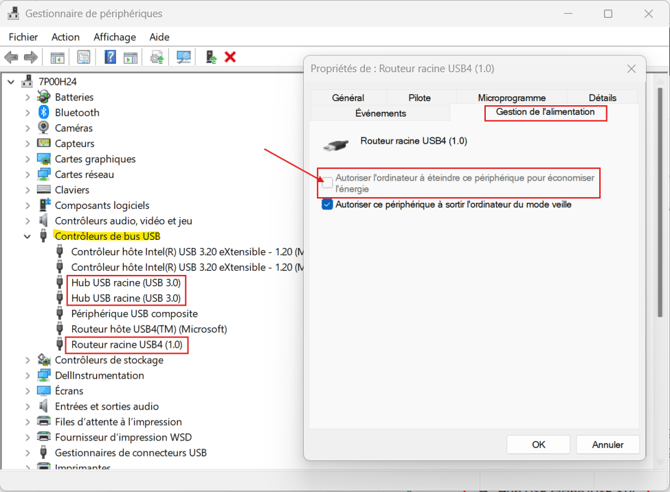
Expand the "Universal Serial Bus controllers" section to display all items whose description contains the word "root".
Right-click on each of them, then select "Properties".
We will make sure that the option "Allow the computer to turn off this device to save power" is not checked.
This prevents Windows from cutting power to the USB port when the scanner is not in use. Otherwise, the scanner behaves as if it has been disconnected and tries to resynchronize every time it wakes up.
Scanner Reset
Next, we will reset the scanner to restore it to default settings. To do this, scan the barcode below.
It is recommended to print it, as it is often very difficult to scan this code directly from the computer screen.

Now your scanner is like new!
Scanner Configuration/Programming:
Open the 123Scan application located on your desktop.
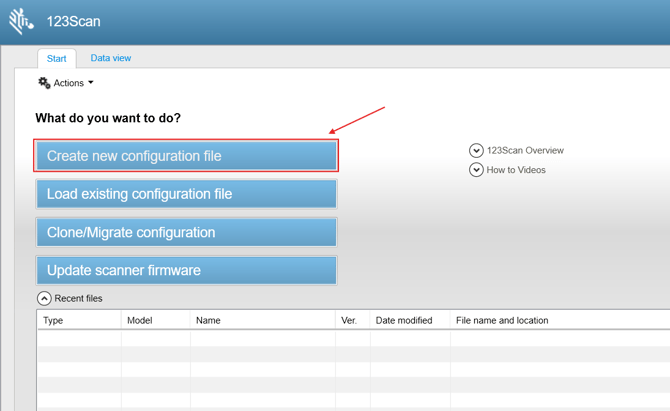
Now let's create a new configuration file, which will then be sent to the scanner to program it.
Choose the option "My scanner is connected via a USB cable".
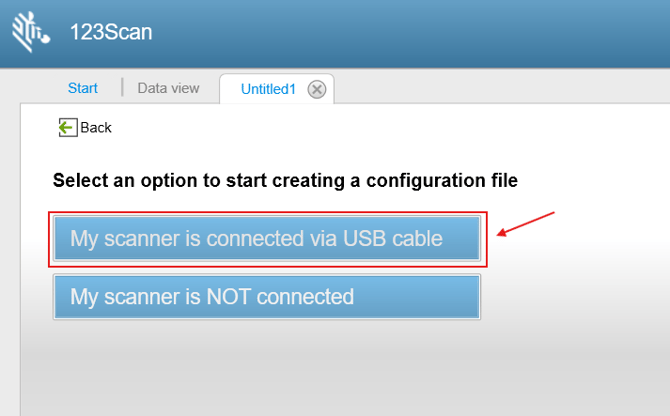
If you scanner is not detected by the 123scan application, simply scan this barcode below:
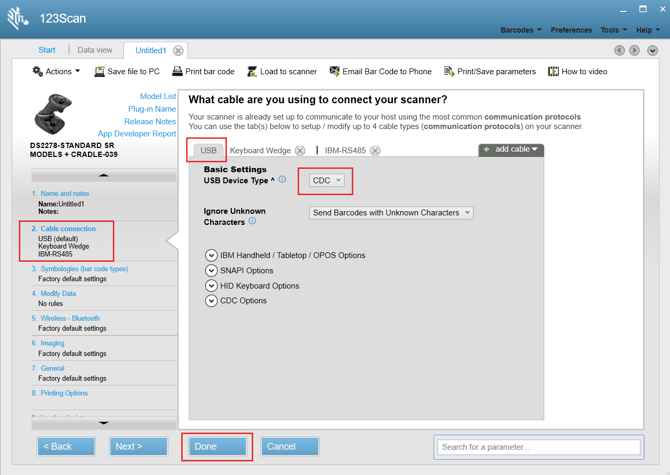
In the left menu, choose option #2 "Cable connection":
-
USB - Basic settings (device type) select "CDC"
-
Press "DONE"
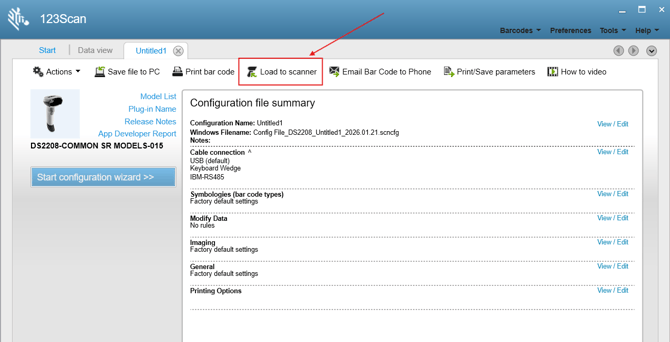
In the next window, click "Load to scanner".
-
In the following window, select your scanner, then click Continue
-
This will send the programming to the scanner. Once the software finishes, simply close the 123Scan program. You will be asked if you want to save the configuration file. It is not mandatory, but recommended to keep it
-
Then disconnect the scanner from the USB port and plug it back in
-
Your scanner is now programmed !
Finding the COM Port
Return to Device Manager to check which port was assigned to it (e.g., COM4, COM5, etc.). This port will be used in Alice.
In Alice
-
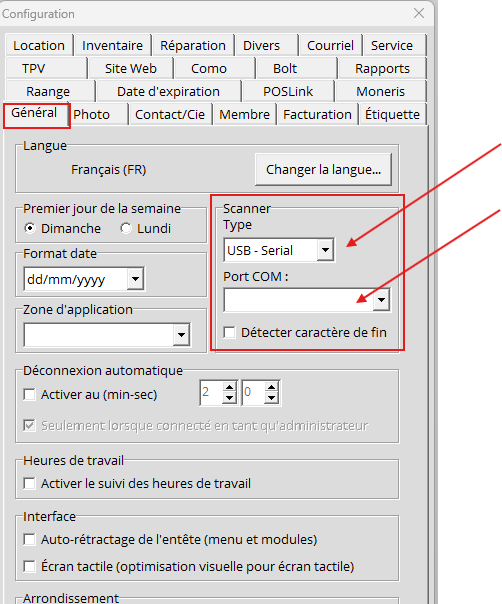
Go to the Configuration icon.
-
Then go to "General".
-
In the "Scanner" section, select "USB - Serial" as the scanner type, then below, choose the COM port that Windows assigned (e.g., COM4, COM5, etc.).
IF NOTHING WORKS IN THE COM PORT MODE (above)
We will configure the scanner in HID mode instead:
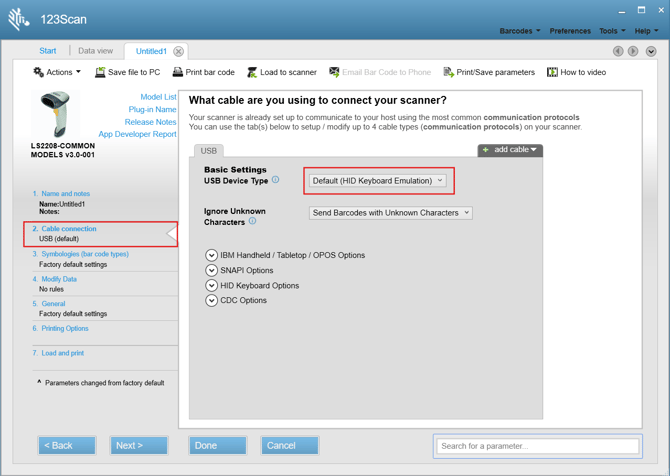
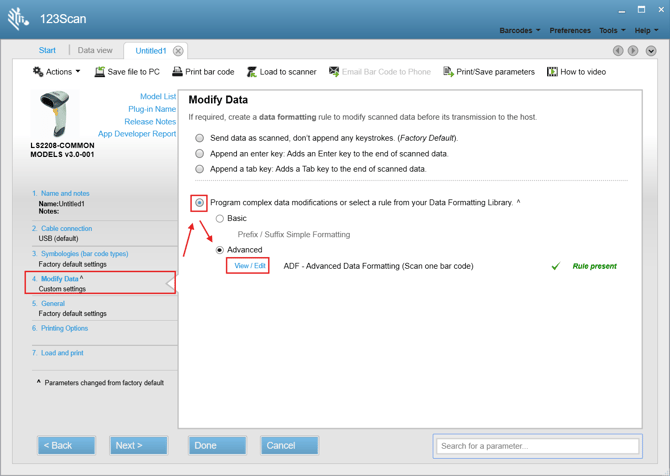
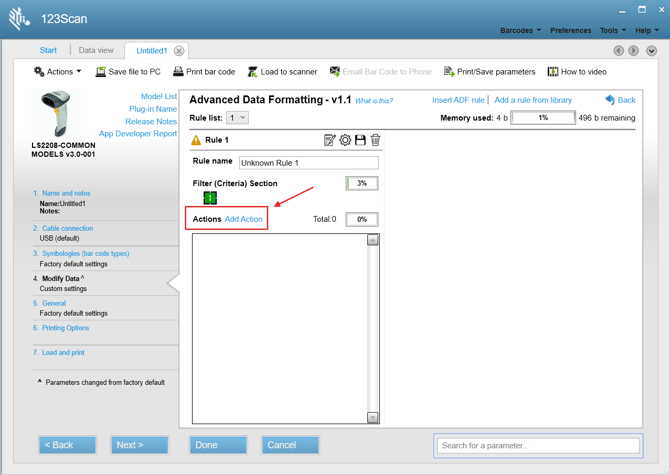
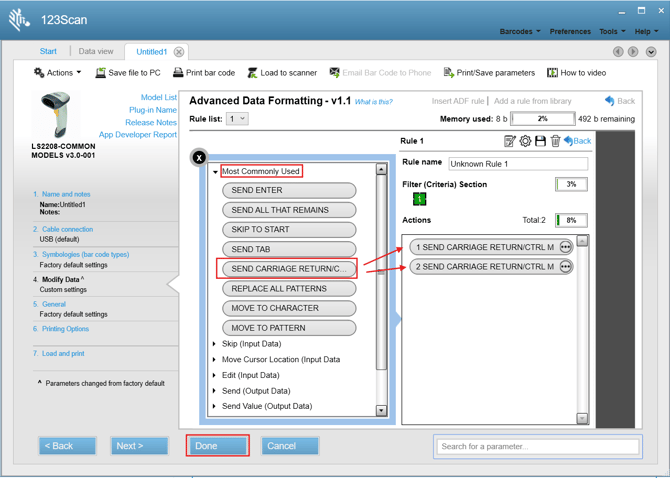
Now your scanner will operate in HID mode instead of COM PORT mode.
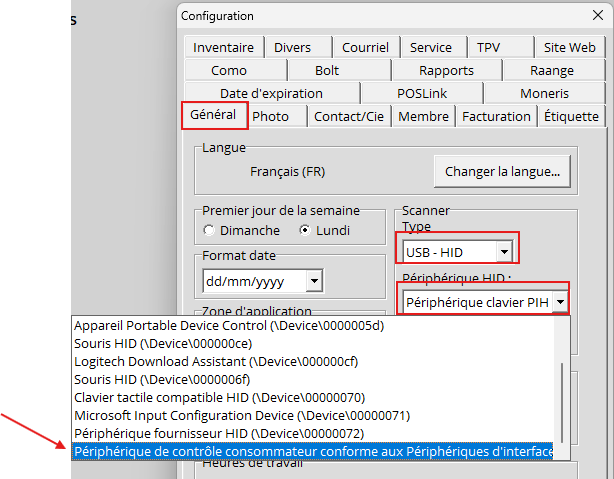
Please select HID mode in Alice and choose the correct device.