1. Make sure the printer is properly connected and powered on:
-
Connect the power cord to an AC outlet.
-
Connect the USB cable to the computer.
-
Connect the cash drawer telephone cable to the "DK" port at the back of the printer.
Cash drawers compatible with Alice POS use an RJ11/RJ12 cable and must be connected to the receipt printer through the RJ11/RJ12 port (a telephone-style jack often labeled DK – Drawer Kick).
2. Download the Drivers
Download the drivers from the manufacturer’s website:
https://epson.ca/Support/Point-of-Sale/sh/s5
-
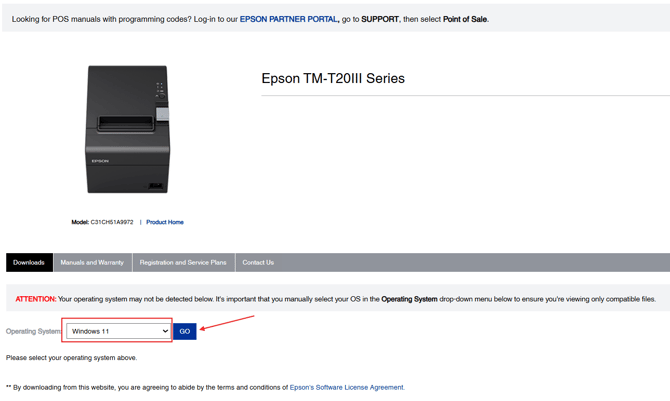
Select your operating system and click “GO.”
-
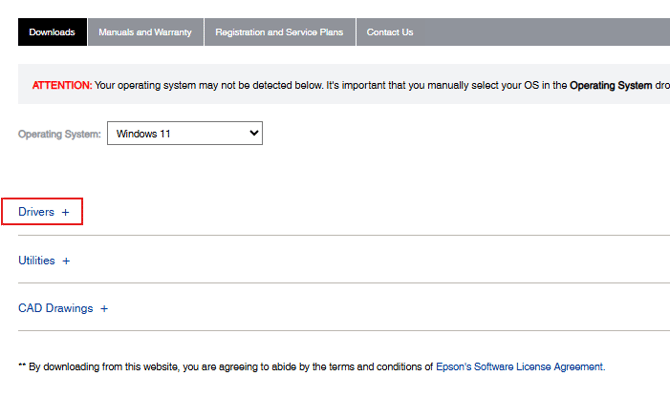
Select “Drivers.”
-
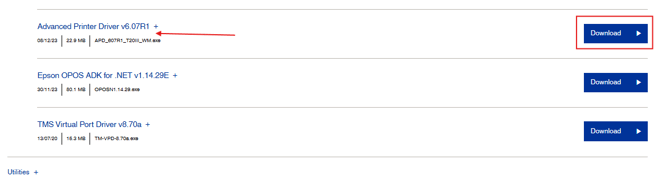
Choose Advanced Printer Driver and click to download.
Select: "Drivers":
Select: Advanced Printer Driver, and click to download:
3. Install the Driver
-
Open the downloaded file.
-
It will decompress into a series of applications and files.
-
Proceed with the installation by double-clicking the APD_ application.
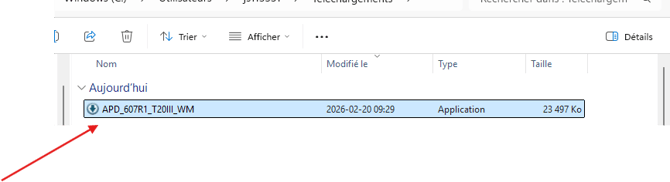
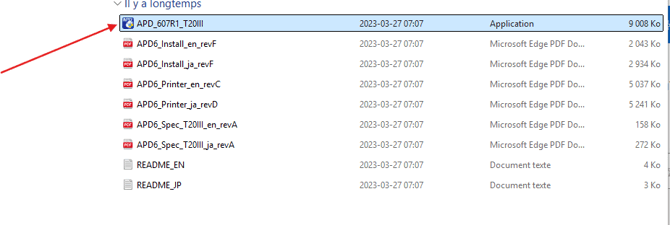
* Once installed, the Epson application should open automatically and bring you to the setup screen.
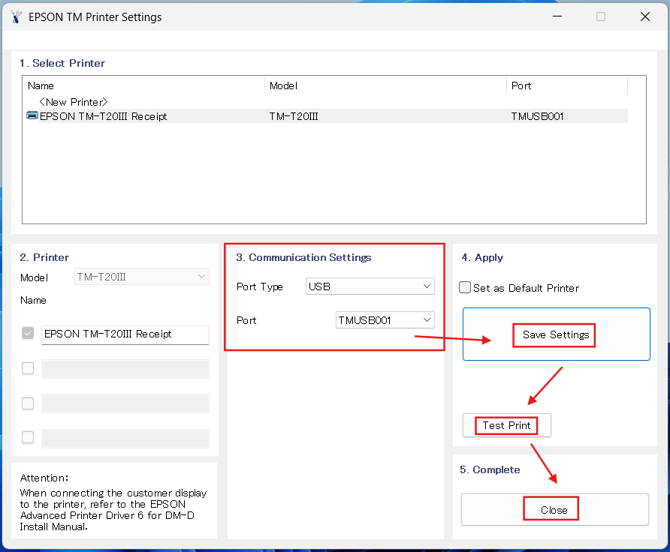
Follow these steps:
-
Select USB as the connection type.
-
The port should auto-assign itself.
-
Save the settings.
-
Perform a test print.
-
Close the application.
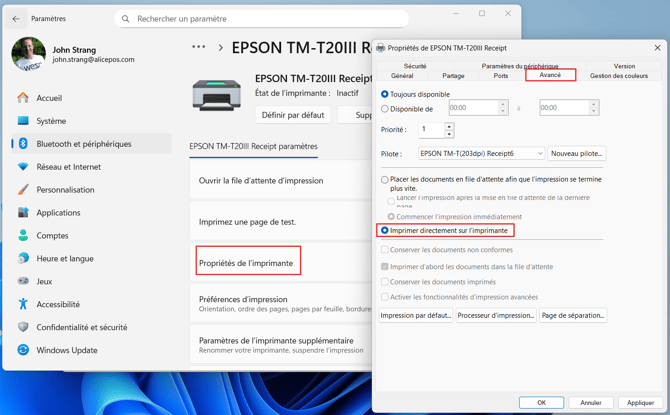
Go to Windows Settings, locate the Epson printer, and configure the values as required below.
5. Configure in Alice
In Alice POS:
-
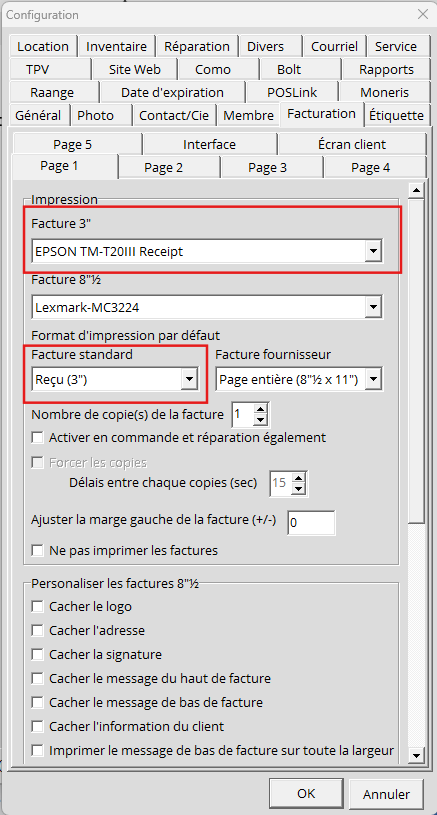
Go to the Config menu.
-
Select the “Invoice” tab.
-
Choose the Epson printer.
-
Select the appropriate receipt printer size (3”).
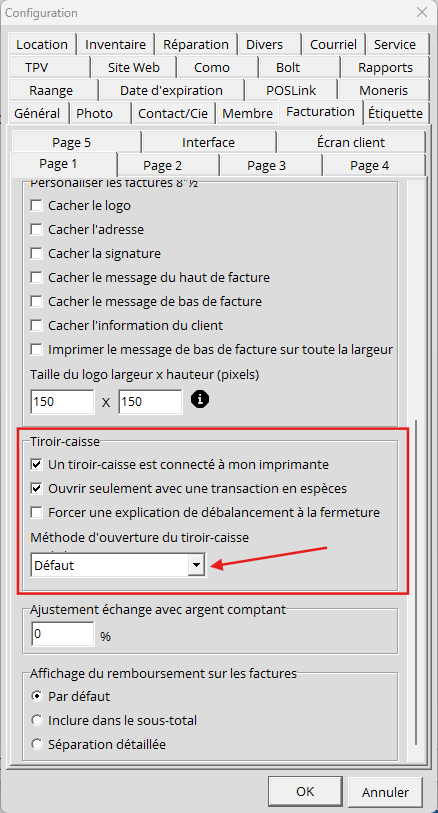
If a cash drawer is connected:
-
Check the first option to enable drawer opening.
-
The second option allows the drawer to open only during cash transactions.
If selected, the drawer will not open for other payment methods.
If the drawer does not open, you may need to try the different methods listed in the configuration options.
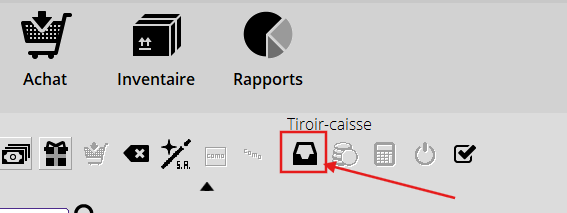
To test the drawer, simply go into Alice and click the Cash Drawer icon.